Configuring Redis Object Caching for High-Traffic WordPress/WooCommerce Architecture
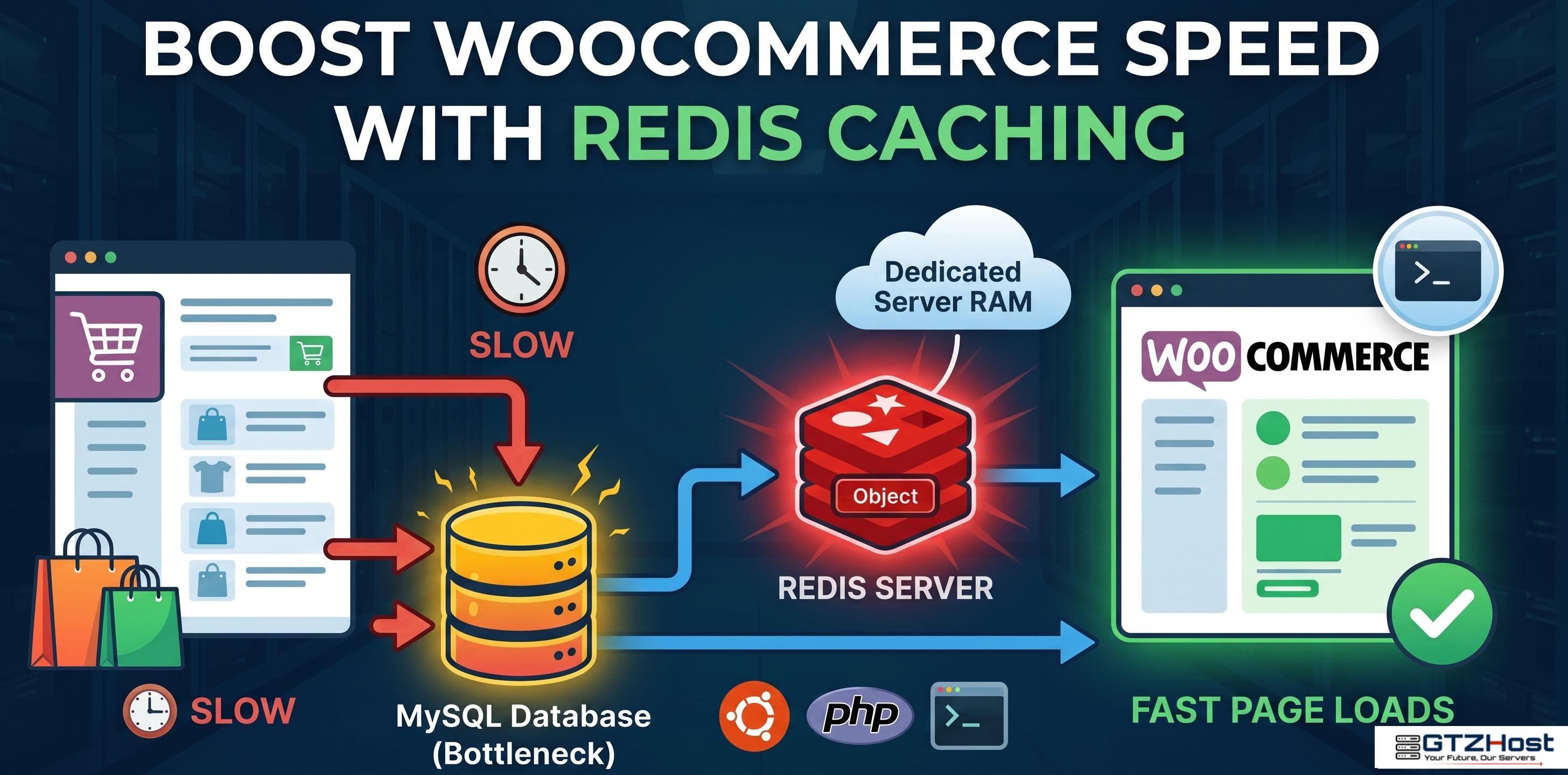
WooCommerce is an exceptionally flexible platform, but its database design is notoriously heavy. Every product lookup, cart update, and checkout session triggers complex dynamic queries against MySQL/MariaDB. During high-concurrency events (like flash sales), these simultaneous queries exhaust database connection pools, causing elevated TTFB (Time to First Byte) or 503/508 server errors.
Implementing an in-memory data store like Redis to handle Object Caching eliminates this database bottleneck by serving pre-computed query results directly from RAM.
Here is a technical walkthrough for installing and optimizing redis-server for high-traffic WooCommerce deployments on Ubuntu LTS.
1. Package Installation and Daemon Verification
First, update your local package repository and install the Redis server daemon alongside the corresponding PHP extension required for your execution environment (e.g., PHP-FPM).
sudo apt update
sudo apt install redis-server php-redis -y
Verify that the Redis service is active and running:
Bash sudo systemctl status redis-server Restart your PHP-FPM pool to ensure the new php-redis extension module is properly loaded into the runtime:
Bash
Replace 8.3 with your active PHP version
sudo systemctl restart php8.3-fpm 2. Memory Management & LRU Eviction Tuning By default, an unconfigured Redis instance can consume available server RAM until the Linux kernel's OOM (Out Of Memory) killer terminates critical processes. For a dedicated Object Cache, you must define explicit memory boundaries and an eviction strategy.
Open the primary configuration file:
Bash sudo nano /etc/redis/redis.conf Locate or append the following directives:
Plaintext maxmemory 256mb maxmemory-policy allkeys-lru Directives Explained: maxmemory 256mb: Allocates a hard memory cap for cached objects. For large catalog stores with tens of thousands of SKUs, scaling this to 512MB or 1GB on high-RAM dedicated servers is recommended.
maxmemory-policy allkeys-lru: Forces Redis to evict the Least Recently Used (LRU) keys first whenever the memory limit is reached, ensuring continuous availability for new incoming query data.
Save the file and restart the daemon to apply the new memory parameters:
Bash sudo systemctl restart redis-server 3. WordPress Configuration & Key Collision Prevention To integrate WordPress with Redis, install an object cache dropped-in plugin (such as Redis Object Cache by Till Krüss).
Before turning on the cache, define a unique key prefix in your wp-config.php file. This prevents key collision issues if you host multiple application environments on the same server:
PHP define( 'WP_REDIS_PREFIX', 'my_woo_store_' ); Once defined, enable the Object Cache via the WordPress CLI or Dashboard settings. Note that well-structured WooCommerce object caching plugins automatically exclude transient dynamic routes (such as /cart/ and /checkout/) from object caching to prevent serving stale session data to users.
- Validating Real-Time Cache Operations To confirm that WordPress is actively offloading database reads/writes to RAM, open a terminal session and run the Redis CLI monitoring tool:
Bash redis-cli monitor While running this command, hit a few product URLs on the frontend. You should observe a real-time stream of incoming GET, SET, and EXPIRE commands, validating that your database layer is successfully decoupled from dynamic traffic reads.